Scenarios and Scenario List
Scenario List is the workspace-wide explorer for scenarios from connected sources and AI Studio. Use its source tree, folders, search, and status filters to find automation before adding it to a Test Plan.
Scenario sources
AI Studio offers two starting points:
- Import from Test Repository copies selected TestPilot cases or sets into an AI Studio folder.
- New Scenario creates a Web or Mobile scenario from an AI prompt or explicit step-by-step input.
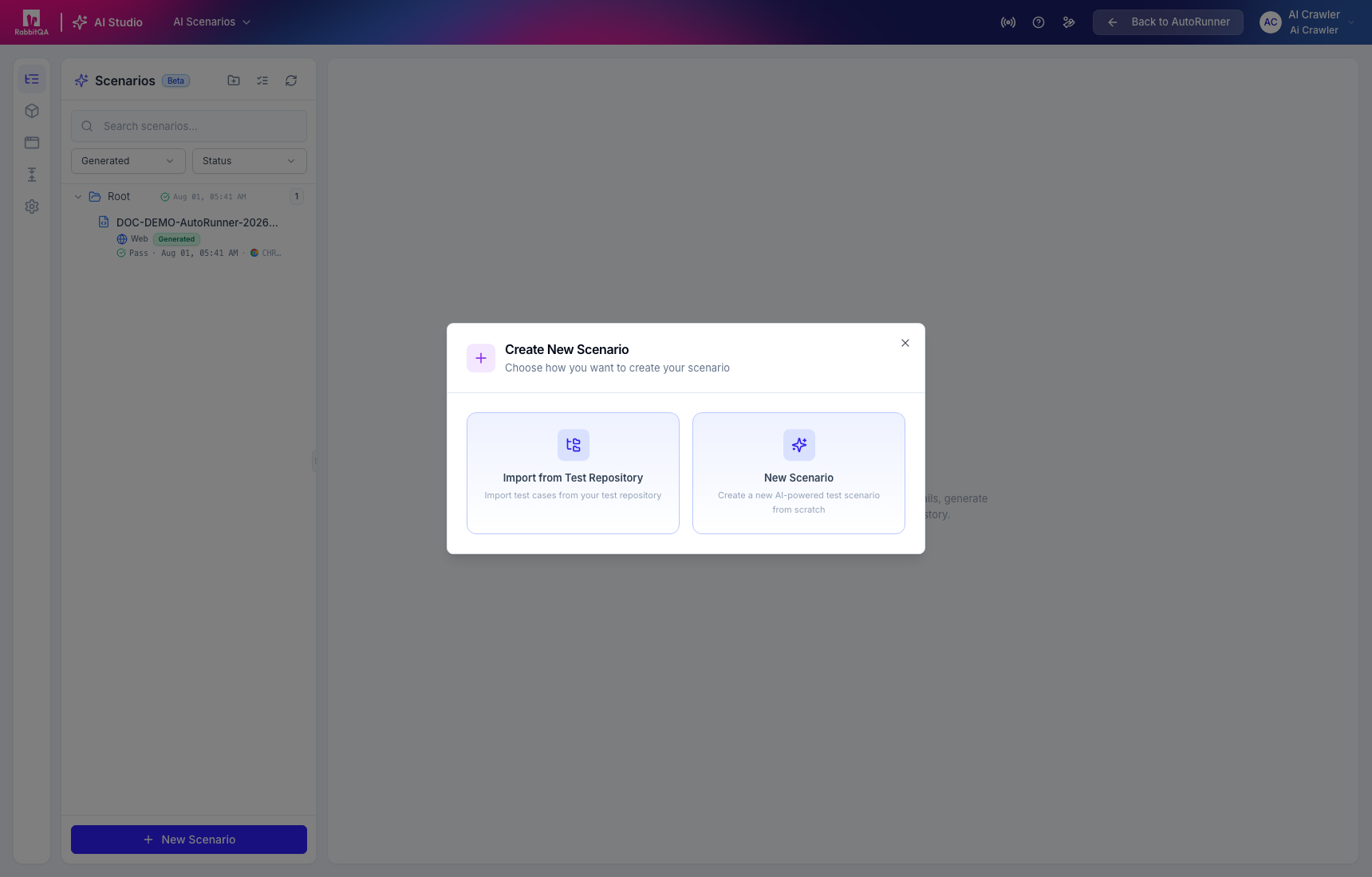
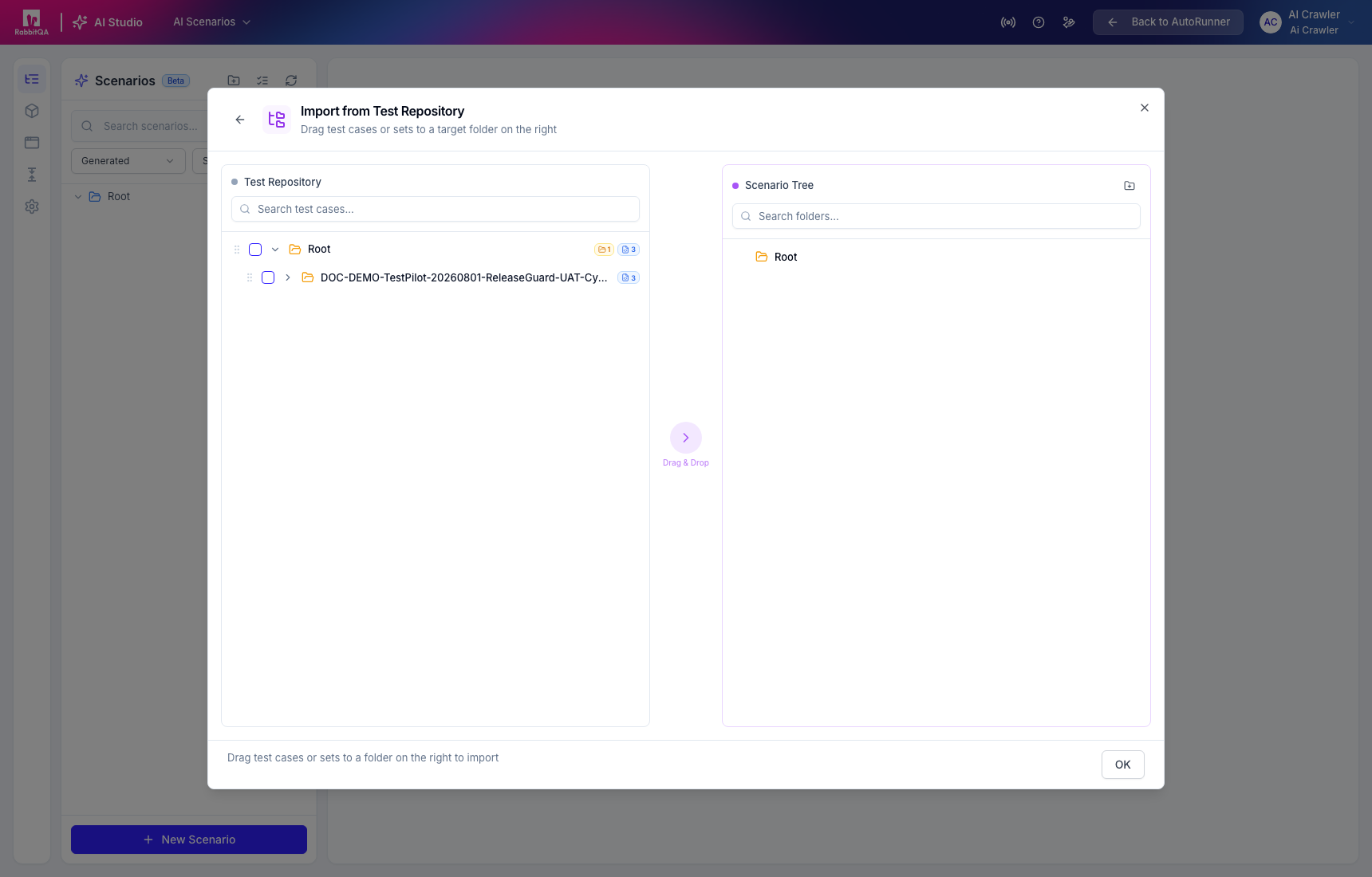
Import from Test Repository
Select approved cases on the left and a target folder on the right. Importing creates AutoRunner scenario content; it does not automatically create a Test Plan or execute the cases.
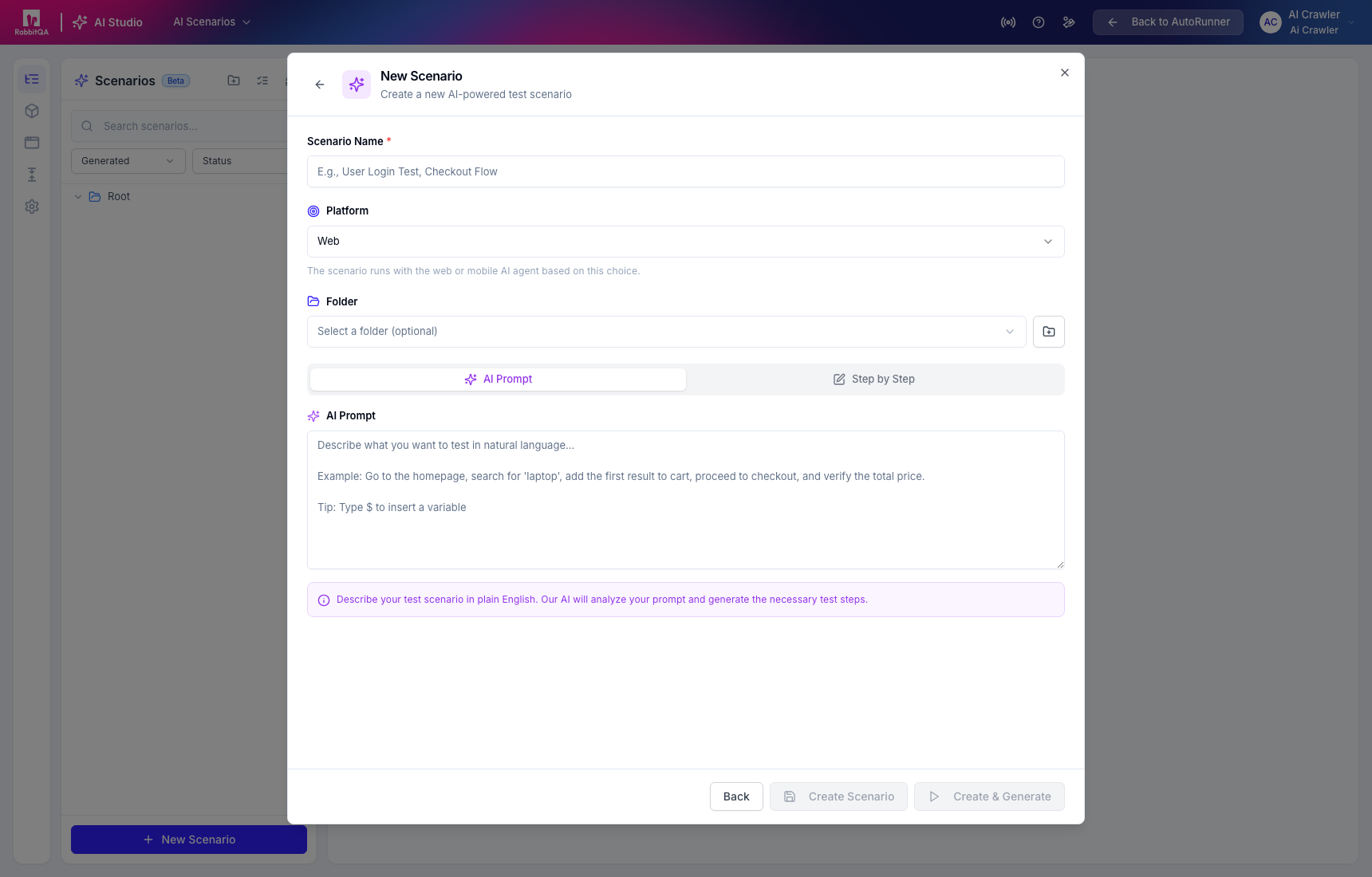
AI Prompt
Describe the target behavior in plain language. Include the starting point, required observations or actions, expected outcome, and explicit prohibitions for sensitive flows.
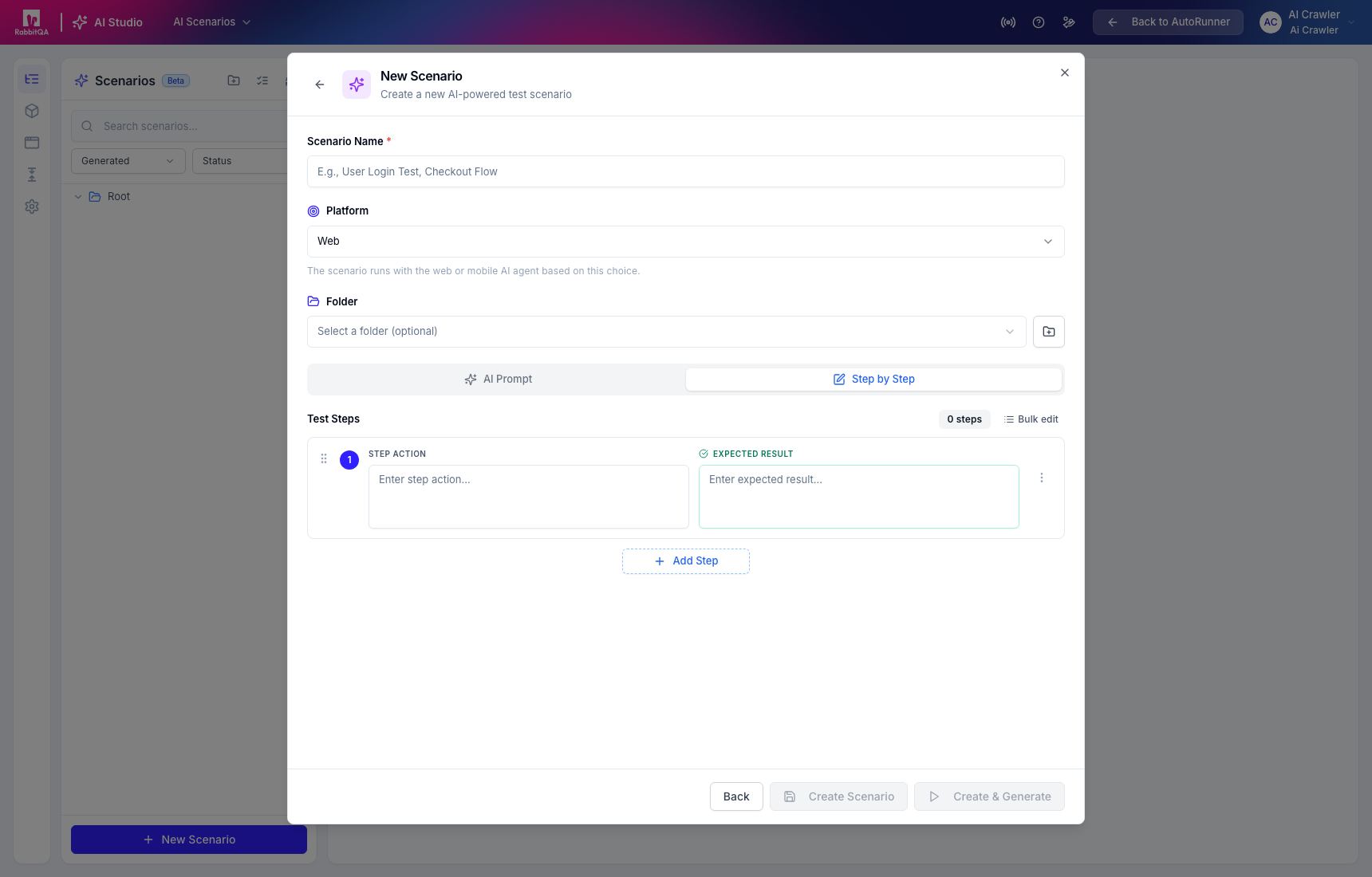
Step by Step
Use Step by Step when the action and expected result for each step are already known. Reorder the steps before saving so the intended sequence is unambiguous.
Scenario configuration
A scenario can maintain:
- preconditions;
- an AI prompt or explicit steps;
- scenario variables that override base variables for that scenario;
- generated or edited automation versions; and
- separate generation, review, and activation history.
Editing a saved AI prompt can reset generated automation and require regeneration. Read the confirmation before saving.
Workspace and source scope
The Scenario List aggregates sources within the active workspace. Always confirm the selected workspace before moving, importing, deleting, or adding scenarios to a plan. Source synchronization and permissions may limit which scenarios are visible.
Continue to AI Studio for generation or Automation Script for the executable structured document.
