Provisioning
Provisioning is a shared platform surface that supplies SmartRequest's product and module context. Open it from the platform navigation, then select New Product or an existing product.
Create a product
The product form contains four steps.
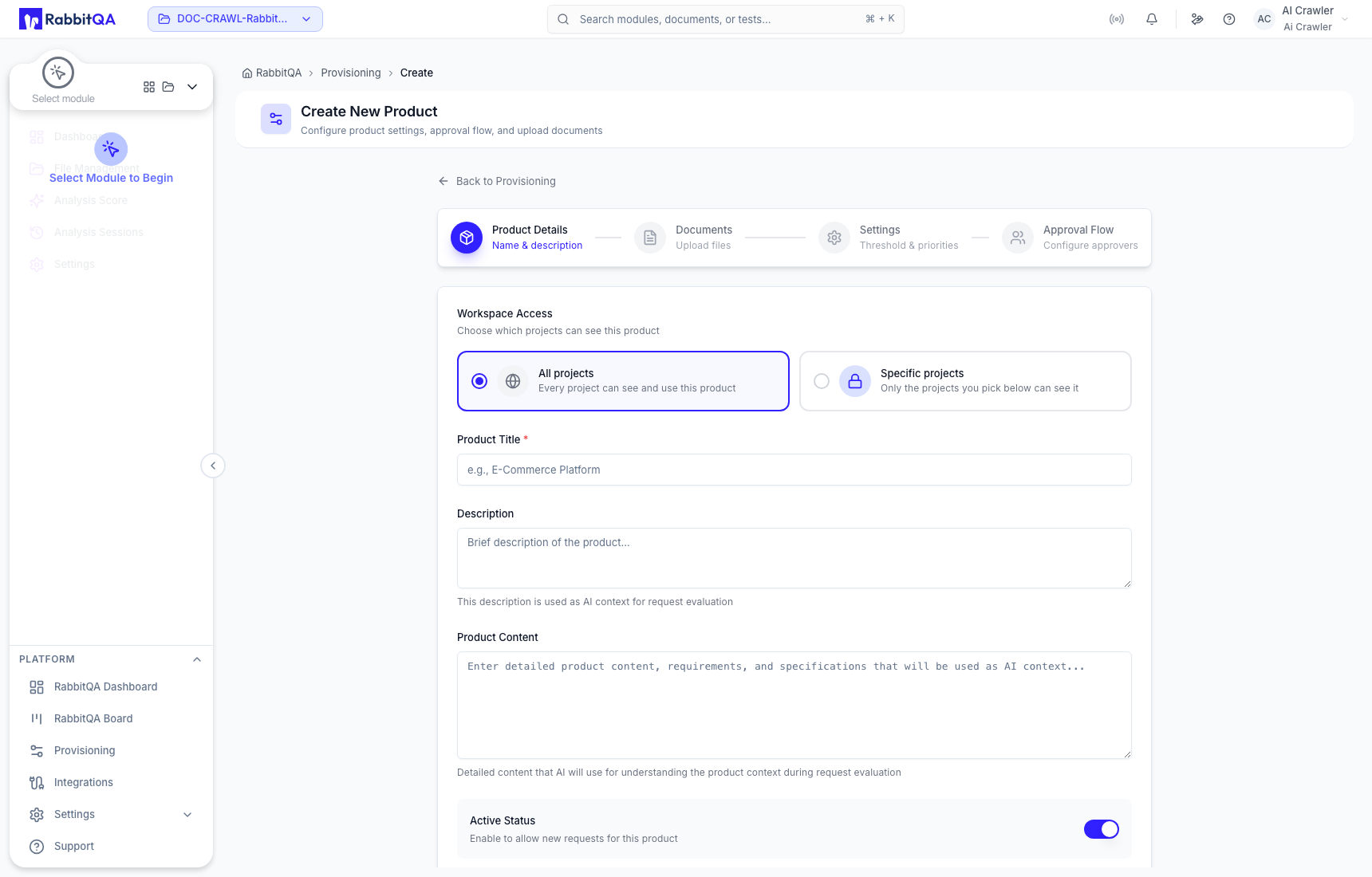
1. Product Details
Enter the title, description, and stable Product Content used as AI evaluation context. Keep Active Status enabled when users must be able to select the product.
Choose its project visibility:
- All projects: every current and future company project can see the product.
- Specific projects: only projects in the explicit allowlist can see it. At least one project is required before a restricted product can be created.
2. Documents
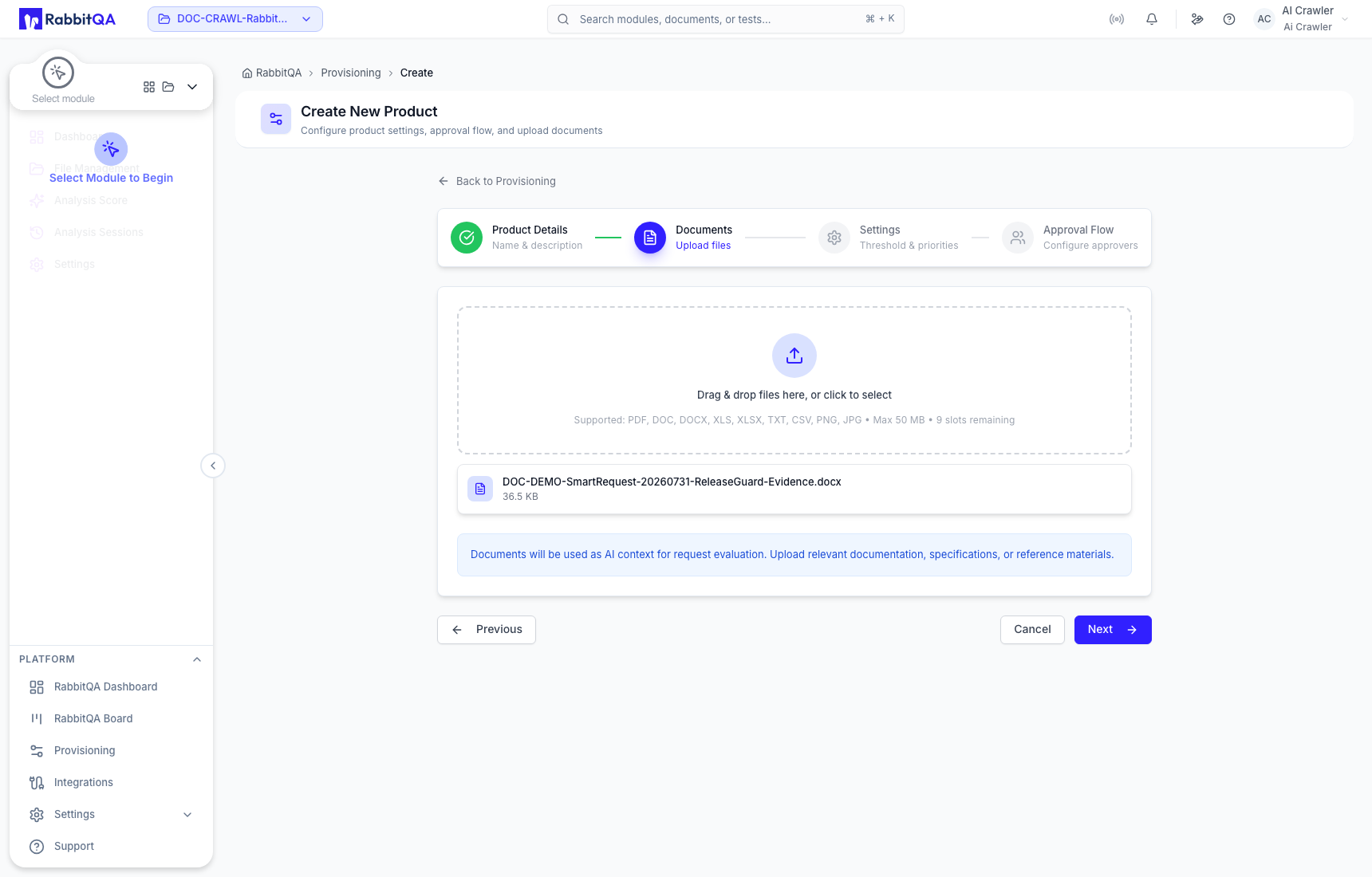
Add product-wide reference material. The current product form accepts up to ten files, up to 50 MB each: PDF, DOC, DOCX, XLS, XLSX, TXT, CSV, PNG, and JPG. These files apply across the product; module-specific files are maintained separately.
3. Settings
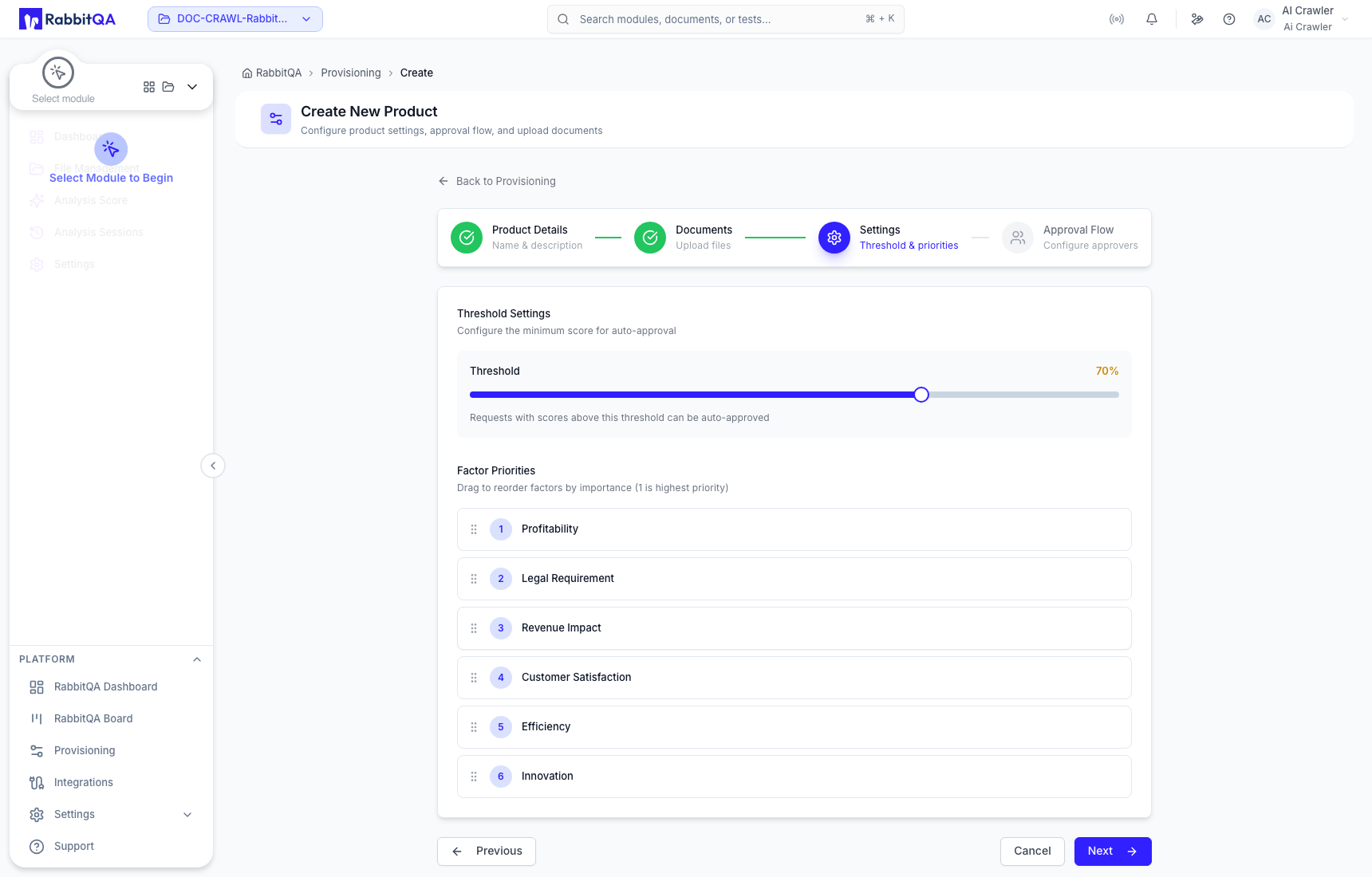
Set the product threshold and drag the six factors into priority order:
- Profitability
- Legal Requirement
- Revenue Impact
- Customer Satisfaction
- Efficiency
- Innovation
Position 1 has the highest scoring influence. Product values override company defaults for later evaluations. Meeting the threshold marks a request as ready for the configured approval flow; it does not approve the request by itself.
4. Approval Flow
Add eligible approvers in top-to-bottom order. Approval proceeds sequentially. When Auto-assign Requests is enabled, new requests are assigned to the first approver, but that assignment does not replace the approval decision.
Product-specific approvers take precedence. Company Settings provide defaults when a product has no saved approver list.
Maintain modules
Open a product to build its module tree. A module has a name, description, Business or Technical request type, optional documents, and optional custom fields. A sub-module maintains its own configuration under its parent.
Module documents narrow the evaluation context for that product area. Module custom fields collect additional generated-request data and can be marked required.
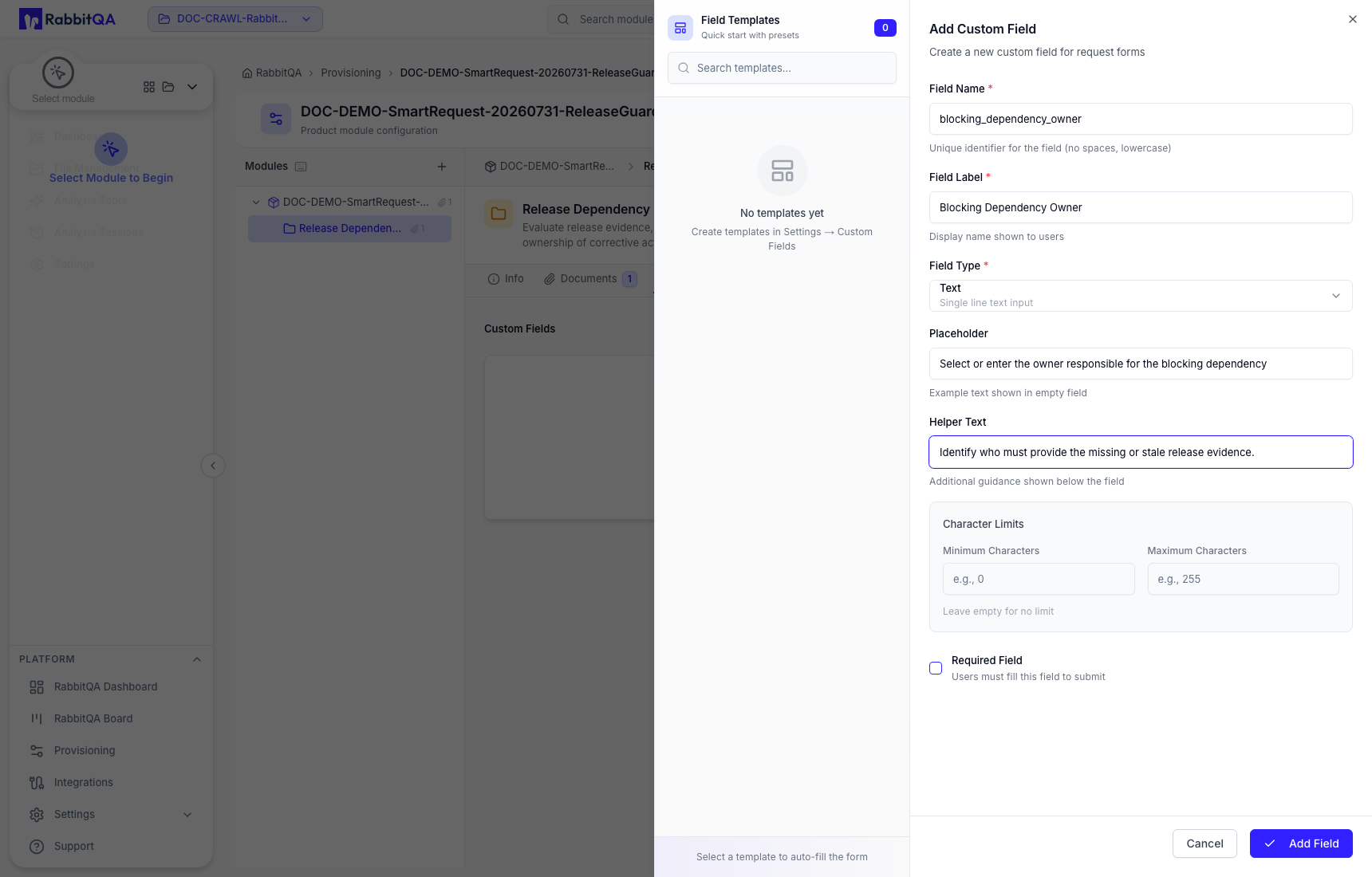
For a selected module you can add a sub-module, edit it, move its complete branch, duplicate its structure and fields, or delete it. Duplicating a module does not copy its documents.
Deleting a product affects its complete module hierarchy. Deleting a parent module also removes its descendants. Review linked request context and the full branch before confirming.
